
CODE ERROR PRINTER HP LASER JET
HP LaserJet Pro, Ultra M130-M134 Printers - Blinking Lights
This document is for the HP LaserJet Pro MFP M130a, M132a, and LaserJet Ultra MFP M134a printers.
The following sections describe the most common error conditions with combinations of blinking (flashing) lights displayed on the printer control panel, followed by solutions for each combination. Find the blinking light pattern that displays on the control panel, and then follow the steps to resolve the issue.
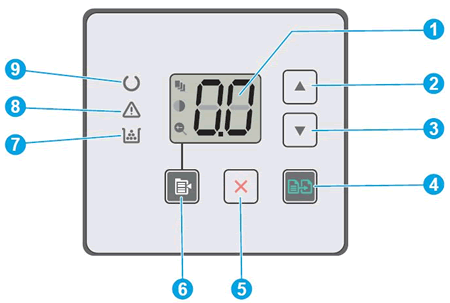
- Control panel LED display
- Up arrow button
- Down arrow button
- Start Copy button
- Cancel button
- Copy Setup button
- Supplies light
- Attention light
- Ready light
Figure : Control panel buttons, icons, and lights
Er/01 displays and the Attention light blinks

An Er/01 error message indicates the input tray is empty. To resolve the error, make sure paper is correctly loaded in the input tray.
Figure : The Attention light is blinking
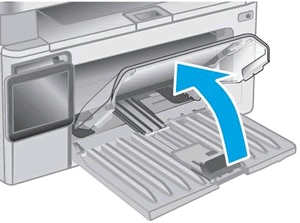
- Lift the dust cover.Figure : Lifting the dust cover
- Slide the paper width and paper length guides to their outermost positions.Figure : Sliding the paper guides to their outermost positions.

- Load a stack of plain paper with the print-side facing up into the input tray, and then slide the stack forward until it stops.
NOTE:
Load up to 150 sheets of paper with the print side facing up and the top edge toward the printer. If you are loading pre-punched paper, load the paper with the holes toward the left side of the tray.Figure : Loading paper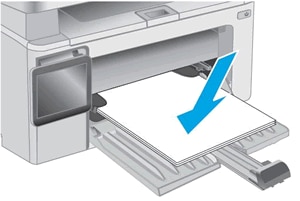
- Slide the paper length and width guides so they rest against the stack of paper.Figure : Sliding the paper guides inward
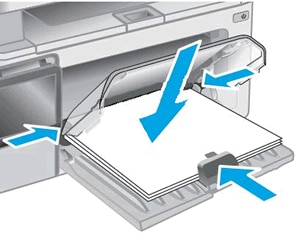
- Press in the sides of the dust cover lightly, and then lower it.
CAUTION:
Do not lower the dust cover without pressing in the sides. This might damage the dust cover or the printer.Figure : Lowering the dust cover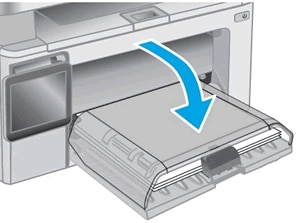
NOTE:
Before printing or copying, select the correct paper size and paper type settings from the control panel or computer.
Er/02 displays and the Attention light blinks
An Er/02 error message indicates the top cover is not closed completely.
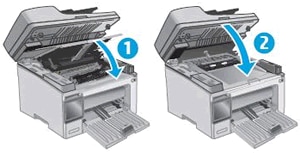
Close the top cover completely, and then lower the scanner assembly.
Figure : The Attention light is blinking
- Close the top cover
- Lower the scanner assembly
Figure : Closing the top cover and lowering the scanner assembly
Er/04, Er/05, or Er/06 displays and the Attention light blinks
An Er/04, Er/05, or Er/06 error message indicates a paper jam.
Find and clear the printer of any jammed paper, or reset the printer if the printer has no jammed paper. For detailed troubleshooting, go to Paper Jam Error.
Figure : The Attention light is blinking
Er/07 displays, the Attention light blinks, and the Supplies light is on

An Er/07 error message indicates the toner cartridge or imaging drum is missing or not installed correctly.
To resolve the issue, correctly install the missing toner cartridge or imaging drum. If the toner cartridge or imaging drum is missing, skip to the step to replace the toner cartridge or the step to replace the imaging drum.
Figure : The Attention and Supplies lights are blinking
Visit HP SureSupply to check ink or toner cartridge compatibility or purchase replacement cartridges and other supplies.
- Go to HP SureSupply.
- If necessary, select your country/region.Figure : Country/region selector

- Follow the on-screen instructions to order new supplies or check cartridge compatibility with your printer.
You can also purchase genuine HP cartridges and supplies from other retailers.
Step 1: Remove and reinstall the toner cartridge
Open the scanner assembly and top cover, remove the toner cartridge, reinstall it, and then try to print. For more detailed information, go to Replacing the Toner Cartridge.
If the error persists, continue to the next step.
Step 2: Remove and reinstall the imaging drum
Open the scanner assembly and top cover, remove the imaging drum, reinstall it, and then try to print. For more detailed information, go to Replacing the Imaging Drum.
Step 3: Install a new toner cartridge
Replace the toner cartridge with a new toner cartridge and try to print.
If the error persists, continue to the next step.
Step 4: Install a new imaging drum
Replace the imaging drum with a new imaging drum and try to print.
If the error persists, continue to the next step.
If you have completed all the previous steps and the issue persists, continue to the Service the printer section at the end of this document.
Er/08, Er/09, or Er/10 displays, the Attention light blinks, and the Supplies light is on
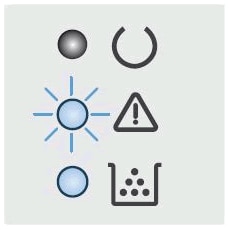
An Er/08 error indicates that the toner cartridge is very low. An Er/09 error indicates the imaging drum is very low. An Er/10 error indicates that both the toner cartridge and imaging drum are very low.
- M130a and M132a: Press the Start Copy button
 to continue printing with the current toner cartridge. Once print quality becomes unacceptable, replace the toner cartridge or imaging drum.
 - M134a: Replace the toner cartridge or imaging drum to continue printing.
Figure : The Attention light is blinking and the Supplies light is on
Visit HP SureSupply to check ink or toner cartridge compatibility or purchase replacement cartridges and other supplies.
- Go to HP SureSupply.
- If necessary, select your country/region.Figure : Country/region selector
- Follow the on-screen instructions to order new supplies or check cartridge compatibility with your printer.
You can also purchase genuine HP cartridges and supplies from other retailers.
Step 1: Replace the low or empty toner cartridge
Replace the toner cartridge with a new toner cartridge and try to print. If the error persists, continue to the next step. For more detailed information, go to Replacing the Toner Cartridge.
Step 2: Replace the imaging drum
Replace the imaging drum with a new imaging drum and try to print. If the error persists, continue to the next step. For more detailed information, go to Replacing the Imaging Drum.
If you have completed all the previous steps and the issue persists, continue to the Service the printer section at the end of this document.
Er/11 to Er/19 displays, and the Attention and Supplies lights blink
The errors might display for the following reasons:
- Er/11, Er/14, or Er/17: The toner cartridge is not compatible with the printer, has been protected on another printer, or is an unauthorized toner cartridge.
- Er/12, Er/15, or Er/18: The imaging drum is not compatible with the printer, has been protected on another printer, or is an unauthorized imaging drum.
- Er/13, Er/16, or Er/19: Both the toner cartridge and imaging drum are not compatible with the printer, have been protected on another printer, or are unauthorized supplies.
Replace the affected supplies.
Figure : The Attention and Supplies lights are blinking
Visit HP SureSupply to check ink or toner cartridge compatibility or purchase replacement cartridges and other supplies.
- Go to HP SureSupply.
- If necessary, select your country/region.Figure : Country/region selector
- Follow the on-screen instructions to order new supplies or check cartridge compatibility with your printer.
You can also purchase genuine HP cartridges and supplies from other retailers.
Step 1: Replace the incompatible toner cartridge
Replace the toner cartridge with a new toner cartridge and try to print. If the error persists, continue to the next step. For more detailed information, go to Replacing the Toner Cartridge.
Step 2: Replace the incompatible imaging drum
Replace the imaging drum with a new imaging drum and try to print. If the error persists, continue to the next step. For more detailed information, go to Replacing the Imaging Drum.
If you have completed all the previous steps and the issue persists, continue to the Service the printer section at the end of this document.
Er/20 displays, and the Attention and Supplies lights blink
An Er/20 error message indicates an error with the toner cartridge sensor.
Figure : The Attention and Supplies lights are blinking
Step 1: Replace the toner cartridge
To replace a missing or old toner cartridge, open the scanner assembly and top cover, remove the old toner cartridge, and then install a new one. For more detailed information, go to Replacing the Toner Cartridge.
If you have completed all the previous steps and the issue persists, continue to the Service the printer section at the end of this document.
Er/25 displays and the Attention light blinks
An Er/25 error message indicates the loaded paper is not the correct size for the print job.
To resolve the error, load the correct size paper, or press the Start Copy button to continue with the current size paper.
to continue with the current size paper.
Figure : The Attention light is blinking
Er/30 to Er/79 displays and the Ready and Attention lights are on

An Er30, Er/49, Er/50, Er/51, Er/52, Er/53, Er/54, Er/55, Er/56, Er/57, Er/58, Er/59, Er/60 or Er/79 error message indicates the printer is in an error state.
Figure : The Ready and Attention lights are on
- Turn the printer on, if it is not already on.
- Wait until the printer is idle and silent before you continue.
- With the printer turned on, disconnect the power cord from the rear of the printer.
- Unplug the power cord from the wall outlet.
- Wait at least 60 seconds.
- Plug the power cord back into the wall outlet.
NOTE:
HP recommends connecting the printer power cord directly to the wall outlet. - Reconnect the power cord to the rear of the printer.
- Turn on the printer, if it does not automatically turn on.The printer might go through a warm-up period. The printer lights might flash, and the carriage might move.
- Wait until the warm-up period finishes and your printer is idle and silent before you proceed.
Plug the product directly into an electrical outlet to make sure that the power source functions correctly.
- Disconnect the power cord from the rear of the product.
- Unplug the power cord from any power strips or surge suppressors.
- Plug the power cord directly into an electrical outlet.
- Reconnect the power cord to the rear of the product.
- Press the Power button (
 ) to turn on the product.
 - Try the task again.If the issue persists, try a different electrical outlet.
If you have completed all the previous steps and the issue persists, continue to the Service the printer section at the end of this document.
Er/81 displays on the control panel and the Attention light blinks
This condition indicates that the incorrect firmware is loaded.
Load the correct firmware. For detailed information on downloading and installing the firmware, go to Getting the Latest Firmware and Product Updates.
Go/01 displays and the Attention light blinks
This condition indicates the printer is in a manual paper feed mode.
Figure : The Attention light is blinking
Load the correct paper type and size for the print job in the input tray, and then press the Start Copy button to continue.
to continue.
Go/02 displays and the Attention light blinks
This condition indicates the printer is processing a manual duplexing print job and needs your assistance to finish the print job.
Figure : The Attention light is blinking
To finish the print job, remove the stack of printed pages from the output tray, and then load the stack with the printed side facing down and the top edge of the stack into the printer. Press the Start Copy button to print the second sides.
to print the second sides.
All the lights are off, and the printer does not respond
This condition occurs when the printer is turned off or there is an issue with the power supply.
If the printer does not turn on, continue to the next step.
Step 2: Make sure the printer is plugged in
Make sure the power cord is connected to the rear of the printer and plugged into an electrical outlet.
- Make sure the power cord is inserted securely into the power connection.Figure : Check the electrical connections

- Make sure the power cord is plugged into the electrical outlet.
- Turn on the printer.
If the printer does not turn on, continue to the next step.
Step 3: Plug the printer directly into a wall outlet
If you are using a surge protector, extension cable, or power strip, plug the printer directly into a wall outlet to make sure the power source functions correctly.
- Unplug the power cord from any surge protector, extension cable, or power strip.
- Plug the power cord directly into a wall outlet.
- Turn on the printer.
If the printer does not turn on, continue to the next step.
Step 4: Make sure the electrical outlet works
Make sure the electrical outlet the printer is plugged into is providing power.
- Unplug the power cord from the electrical outlet.
- Plug another appliance into the electrical outlet to make sure the outlet works.
- If the electrical outlet does not work, plug the printer into another outlet that does work.
- If the electrical outlet works, but the printer still does not turn on, continue to the next step.
Step 5: Test the power with a compatible power cord from a different printer
If you have another available power cord that is compatible with your printer, use the alternate cord to repeat the steps to Plug the printer directly into a wall outlet.
- If these steps resolved the issue, you can stop troubleshooting.
- If the printer turns on with the alternate power cord, the original power cord caused the issue. Contact HP to replace the power cord.
Newer HP printer models require the entering
of a PIN code to access the Service Menu. PIN codes can be found in the service
manuals, however here is a handy list for quick reference.
Note: The Service Menu
is intended for repair technicians and generally includes options like clearing
the event log, changing the maintenance count, maintenance interval, etc.
HP Printer Model
|
Service Menu PIN Code
|
LaserJet 2300
|
11230002
|
LaserJet 2410
|
10241004
|
LaserJet 2420
|
10242004
|
LaserJet 2430
|
10243004
|
Color LaserJet 3000
|
11300005
|
Color LaserJet 3500
|
10350003
|
Color LaserJet 3550
|
10350003
|
Color LaserJet 3600
|
11360005
|
Color LaserJet 3700
|
10370003
|
Color LaserJet 3800
|
11380005
|
LaserJet 4100 MFP
|
04410002
|
LaserJet 4101 MFP
|
04410002
|
LaserJet 4200
|
11420002
|
LaserJet 4240
|
04424005
|
LaserJet 4250
|
09425004
|
LaserJet 4300
|
11430002
|
LaserJet 4345 MFP
|
11434504
|
LaserJet 4350
|
09435004
|
Color LaserJet 4600
|
04460002
|
Color LaserJet 4610
|
05465004
|
Color LaserJet 4650
|
05465004
|
Color LaserJet 4700
|
09470005
|
Color LaserJet 4730
MFP
|
09473005
|
LaserJet 5200
|
05520006
|
Color LaserJet 5500
|
04550002
|
Color LaserJet 5550
|
09555004
|
LaserJet 9000 / 9000
mfp
|
00900001
|
LaserJet 9040
|
04904005
|
LaserJet 9050
|
09905004
|
LaserJet 9040 mfp
|
11904004
|
LaserJet 9050 / 9050
mfp
|
11905004
|
LaserJet 9500
|
04950003
|
LaserJet 9500mfp
|
11950004
|
LaserJet CM3530
|
11353008
|
LaserJet CM4349
|
11434506
|
LaserJet CM4540
|
11454010
|
LaserJet CM4730
|
05473007
|
LaserJet CM6030
|
04603008
|
LaserJet CM6040
|
04604008
|
LaserJet CM8050
|
704938
|
LaserJet CM8060
|
704938
|
LaserJet CP3505
|
06350507
|
LaserJet CP3525
|
09352508
|
LaserJet CP4005
|
10400506
|
LaserJet CP4025
|
11402509
|
LaserJet CP4525
|
11452509
|
LaserJet CP5525
|
11552010
|
LaserJet CP6015
|
03601508
|
LaserJet M525
|
05052512
|
LaserJet M551
|
09055111
|
LaserJet M575
|
05057512
|
LaserJet M601
|
10060311
|
LaserJet M602
|
10060311
|
LaserJet M603
|
10060311
|
LaserJet M651
|
04065114
|
LaserJet M680
|
04068014
|
LaserJet M725
|
05072513
|
LaserJet M775
|
11077512
|
LaserJet M806
|
10080613, 10086013
|
LaserJet M830
|
10083013
|
LaserJet M3027
|
11303506
|
LaserJet M3035
|
11303506
|
LaserJet M4345
|
11434506
|
LaserJet M4555
|
04455511
|
LaserJet M5025
|
11503506
|
LaserJet M5035
|
11503506
|
LaserJet M9040
|
04904008
|
LaserJet M9050
|
04905008
|
LaserJet M9059
|
04905008
|
LaserJet P3005
|
10300506
|
LaserJet P3015
|
07301509
|
LaserJet P4014
|
05401408
|
LaserJet P4015
|
05401508
|
LaserJet P4515
|
05451508
|
LaserJet M630
|
09063014
|


Tidak ada komentar:
Posting Komentar